Topics
Track time and add a session recap
Start a project timer, stop the session and add a short note if needed.
On this page
Before you start
- A project exists. The timer needs a project assignment.
- Check the service and hourly rate if you want to analyse or invoice the time later.
Open in Klausi (sign-in required)
Start and stop the timer
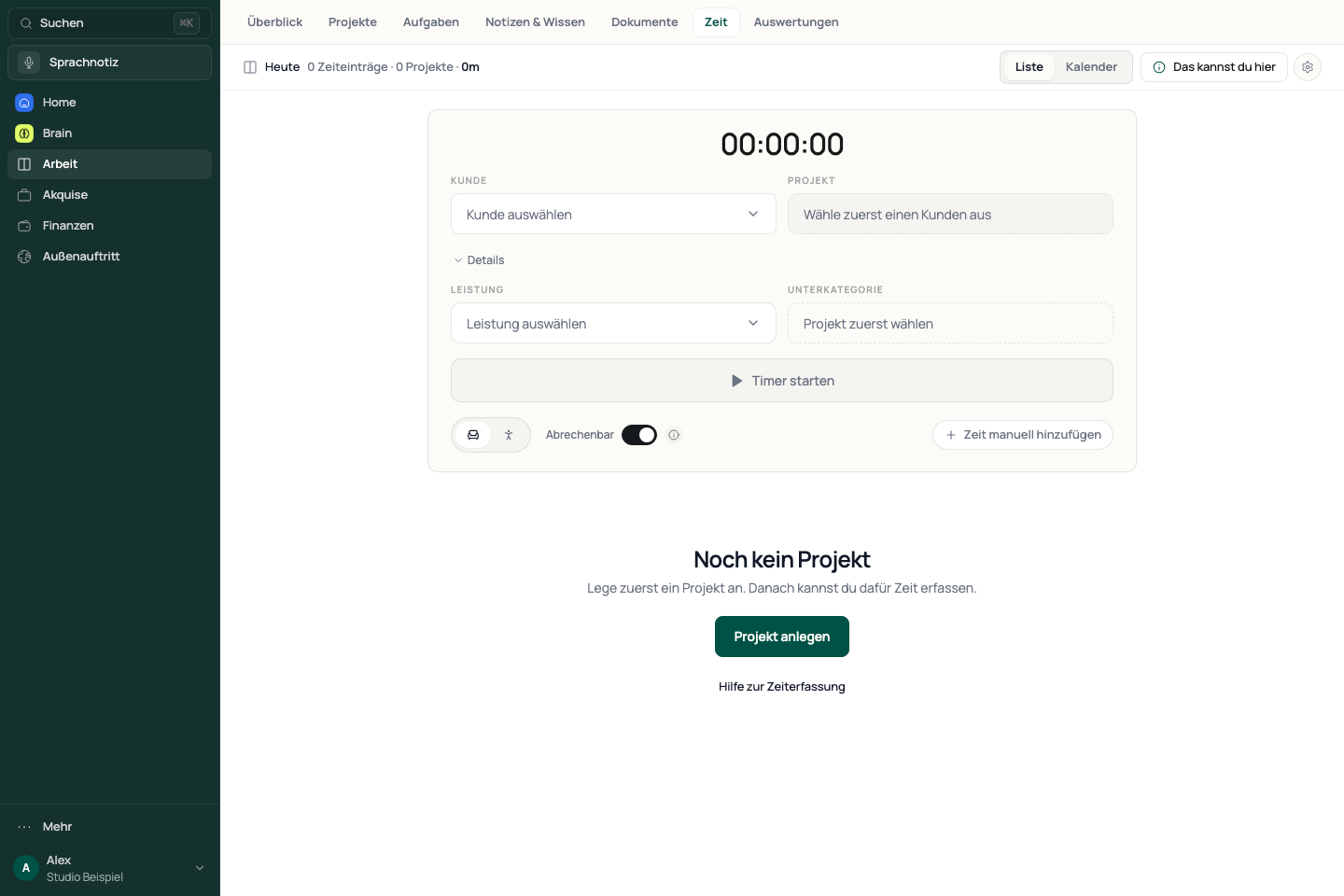
- Open Work → Time.
- Select a client and project. Add a service and subcategory under Details if needed.
- Check Billable and the Sitting or Standing setting.
- Choose “Start Timer”. Check the project and any linked task in the running timer.
- Choose “Stop timer” when you finish.
Start remains disabled until a project is selected. A service is not required to start, but helps with assignment and billing.
See the app view
Add a note after stopping
If the follow-up is enabled, “What did you get done?” opens. The stopped time has already been recorded at this point and the note is optional.
- Briefly describe what you completed, decided or prepared when you want to keep a recap.
- Dictate the note if needed, then check the recognised text.
- Choose “Save”. With content, the note is attached to the time entry; without content, the time entry remains without a recap note.
“Discard entry” deletes the time entry you just recorded after confirmation. Do not use it merely to skip the note.
Add time you forgot to track
- Choose “Add time manually” in the timer. The label is shortened on small screens.
- Check the project and service in the entry dialog.
- Enter the actual time range and other required details.
- Save the entry and check it on the corresponding day.
Use the daily list and calendar
- Use List for the selected day’s time entries.
- Switch to Calendar in the header when you need a calendar view.
- Check the date when looking for an earlier session.
- Use Reports for longer periods and exports.
Today / This week / This month in the list header changes the summary. It does not turn the daily list below into a weekly or monthly list.
If time or amounts look wrong
- Check the date, project and timer status. A running session is not yet complete.
- For missing amounts, check the service, hourly rate and Billable setting.
- After a save error, check for an existing entry before adding the time manually again.
- If only the follow-up after stopping is missing, check “Session recap after stopping” in the time-tracking settings.
Reviewed: