Topics
Capture and manage tasks
Create a task, assign it to a project and find your work through Overview, Today, Inbox and All open.
On this page
Before you start
- You are signed in to your workspace.
- The project must exist if you want to assign the task immediately.
Open in Klausi (sign-in required)
Create a task
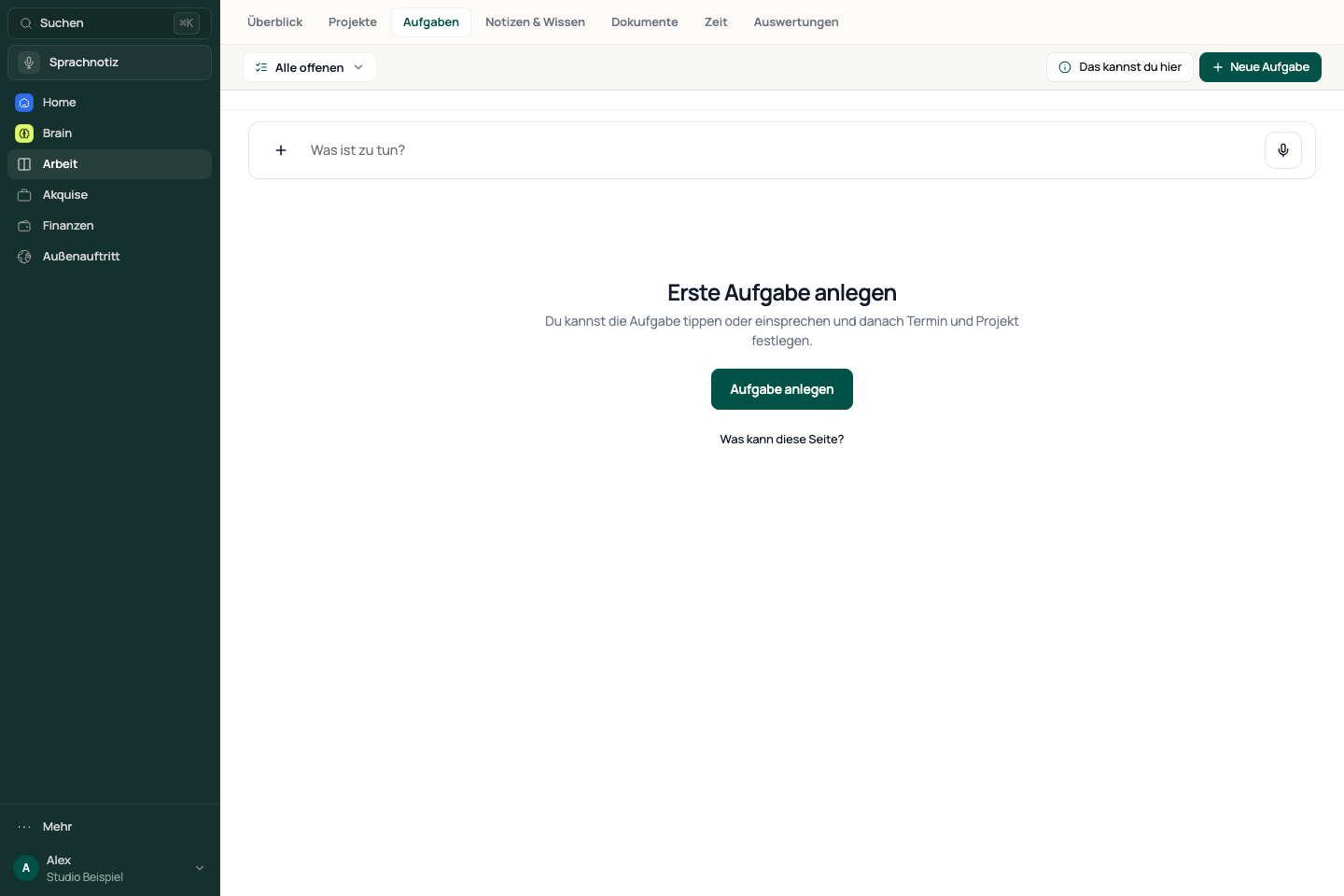
- Open Work → Tasks. This first opens the overview.
- Choose “New task”. On small screens, use the corresponding plus button.
- Enter a clear title in the detail view and add a description.
- Check the save indicator before leaving. Changes are saved automatically.
The task is created when its editor opens. There is no general Save button for title and description. Some editor labels are still German: “Aufgabentitel” means task title, “Gespeichert” means saved, and “Fehler” means error.
See the app view
Add a project and schedule
- Open the task and check its project assignment.
- Select the right project so the task also appears in that project’s Work area.
- Add a schedule or deadline if the task needs to happen at a particular time.
- Check the saved entry in the task list or its project.
A task without a project assignment may not appear in a project. Find open tasks through All open.
Find tasks and track time
- Open the “Tasks” menu in the fixed header.
- Choose Today, Inbox or All open. The title below the header shows the current list; Overview takes you back to the starting view.
- Open a task and use its time-tracking action when you want to work on it.
- Check the task and project carried into the timer. Start the timer there.
Opening time tracking from a task carries over its context. It does not start the timer automatically.
If a task disappears or does not save
- Choose All open in the view menu. For completed tasks, also check Archive and clear any active search.
- Check scheduling, selected client, project and workspace. A rescheduled task can leave the previous view.
- If the editor shows a save error, copy any unsaved text somewhere safe and check your connection.
- Then check the existing entry before creating the same task again.
Reviewed: