Topics
Work with Klausi in Home
Ask a question, continue a conversation or review a suggested task plan.
On this page
Before you start
- You are signed in to the intended workspace.
- AI features must be enabled for AI requests. Check the usage notices shown.
Open in Klausi (sign-in required)
Start a conversation
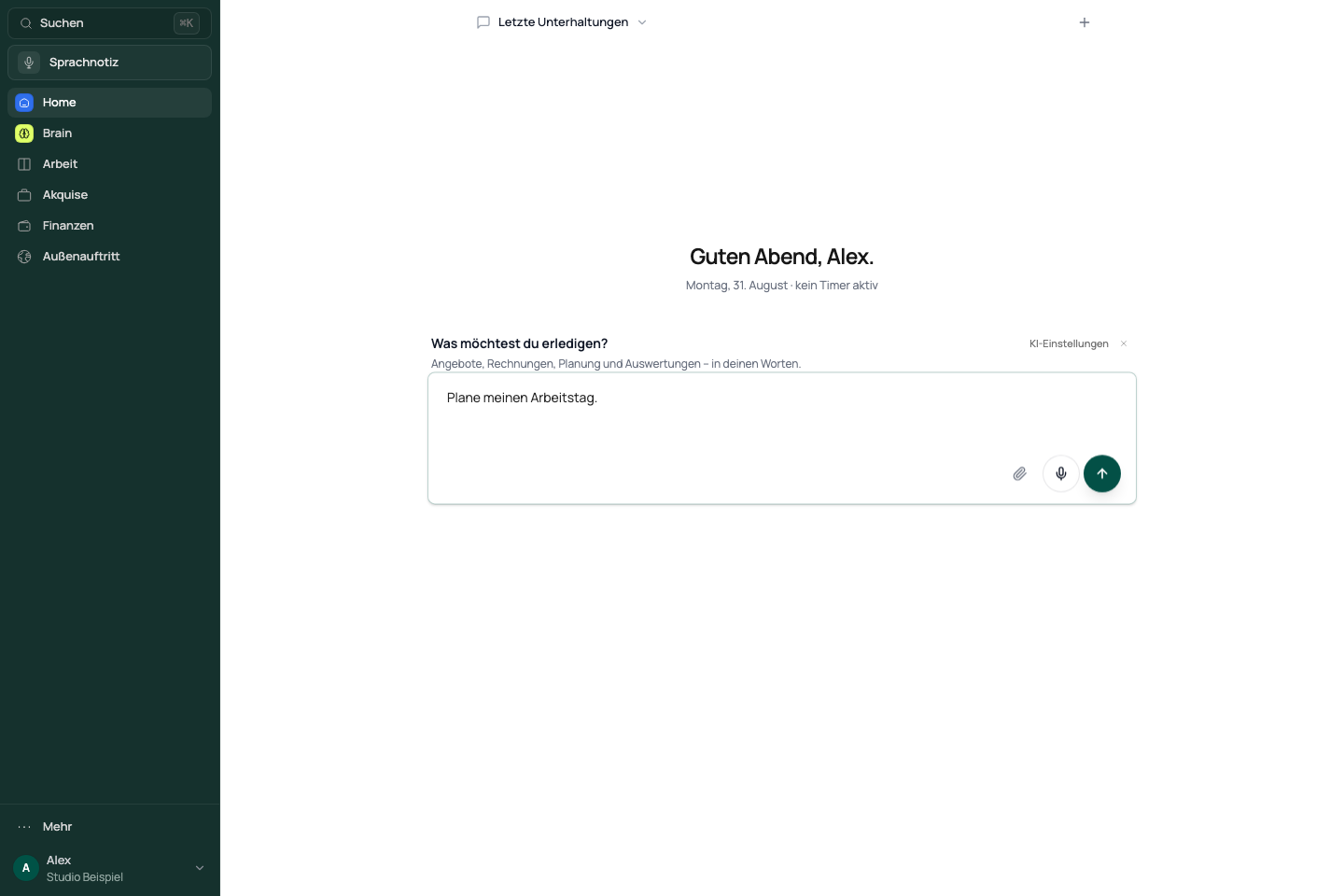
- Open Home in the navigation.
- Briefly describe what you need in the input field, for example: “Plan my next tasks for the Website project.”
- Submit your request using the button beside the input.
- Read the answer and respond to any questions before using the result.
Home is the starting point for conversations and AI suggestions. Your complete task, note and project lists are under Work.
See the app view
Review and create a task plan
Tasks shown in a plan preview have not been created yet.
- Check each suggested entry’s title, project and time information.
- Edit or remove unsuitable entries. Use “Add task” to add your own.
- Choose the button to create the displayed tasks. “Discard” closes the suggestion without creating them.
- After the success message, choose “Go to tasks” and check the new entries.
Find an earlier conversation
- Open “Recent conversations” or the current conversation title at the top.
- Select the conversation you want to continue.
- Use “Rename conversation” to make it easier to recognise.
- Choose “New conversation” for a different topic. Edit tasks already created in the Tasks area.
An answer does not by itself confirm a data change. Check the relevant preview, action and success message.
If a request gets stuck
- Check any message about your connection, AI consent or usage limit.
- Rephrase an unclear request with a specific project and intended result.
- Use the offered retry action after an error.
- If you are unsure whether something was created, check Tasks or Notes first. Only repeat the creation if no matching entry exists.
Reviewed: