Topics
Analyse time and export reports
Choose a period and project, check your time data and export the selected information as CSV or PDF.
On this page
Before you start
- Completed time entries exist.
- Billable settings and hourly rates must match the entries for meaningful amounts.
Open in Klausi (sign-in required)
Choose the period and scope
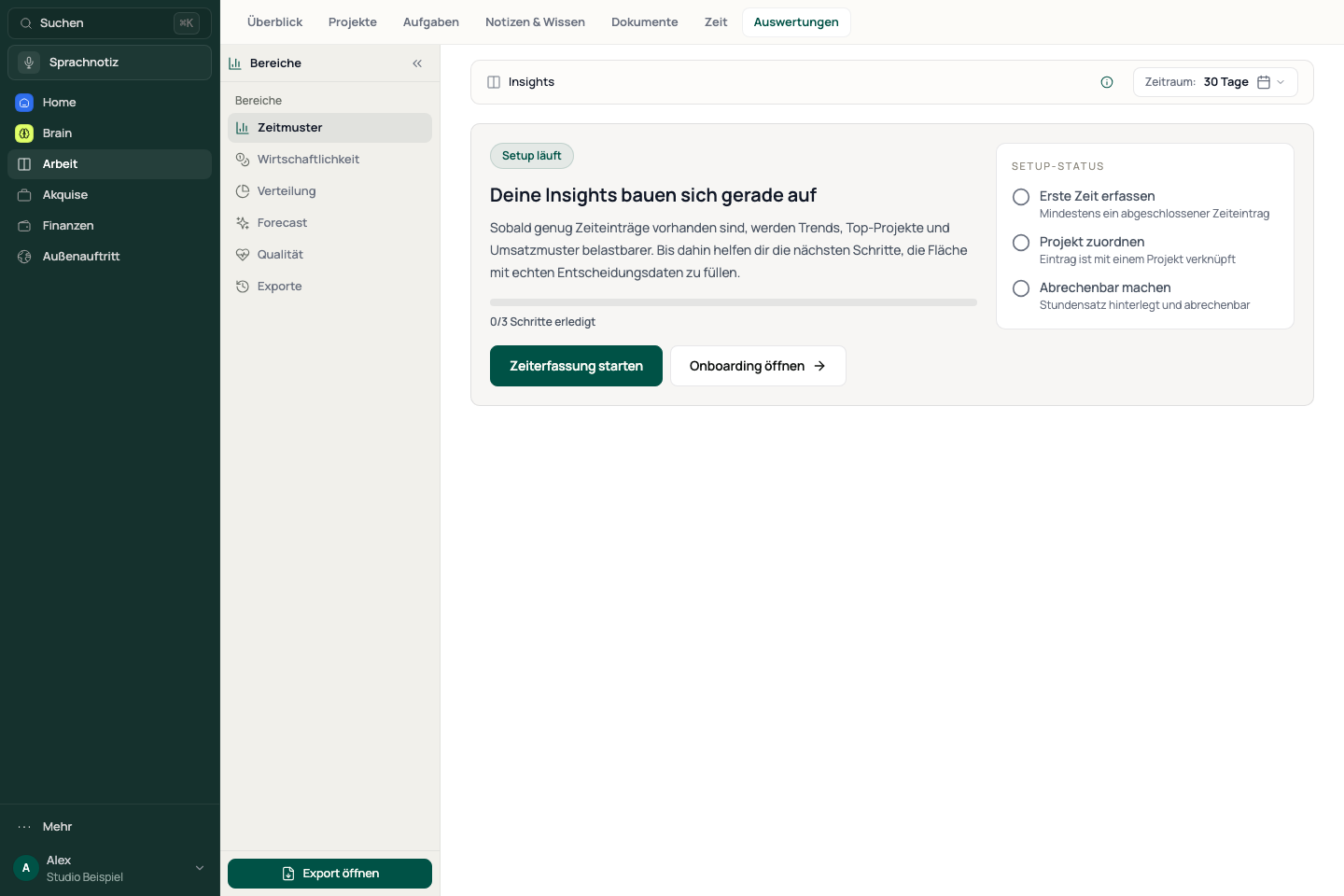
- Open Work → Reports. The page is titled Insights.
- Choose a period or set a custom start and end date.
- Narrow the selection by workspace, client and project if needed.
- Check the active selection before comparing values or exporting.
“30 days” is a rolling period, not the current calendar month. This matters particularly for CSV export on Free.
See the app view
Understand time and economics
- Open Time patterns to review your tracked time across the selected period.
- Switch to Economics for the effective hourly rate, billable share and invoiced time.
- For unexpected values, check the underlying time entries, project assignments and hourly rates.
- Open Invoices when you need to check an actual invoice or payment status.
Time-based revenue values depend on tracked hours and hourly rates. They are not automatically equivalent to payments received.
Open advanced reports
Time patterns and Economics are the basic views. Distribution, Forecast and Quality are advanced reports included in Pro.
- Choose the area you need from the view menu.
- If an upgrade notice appears, check the account’s current plan.
- Read the data notices for forecasts and empty charts. A small number of entries is not enough to assess a reliable trend.
Export a selection as CSV or PDF
- Check the period and active filters, then open export.
- Choose CSV or PDF and group by client or project.
- Check the selection, detail level and columns in the export dialog.
- Start the export and save the file.
- Open the file and check its period and content before sharing it.
Free allows CSV when the entire selected period falls within the current calendar month. PDF and CSV covering dates outside that month require Pro. This rule applies to report exports; other export types have their own conditions.
If data or an export is missing
- Check the period and workspace, client and project filters. Remove overly narrow filters.
- Check that the relevant timers have stopped and their entries are saved.
- For a CSV upgrade notice on Free, explicitly choose a range within the current month.
- For a PDF error, check the message and your sign-in session. Wait for the export result before starting again.
Reviewed: