Topics
Start a live translation
Prepare an event with two languages, check the microphone and usage, then share the audience view.
On this page
- You are signed in, have access to live translation and have remaining usage allowance.
- You need an available microphone and a stable connection.
- Inform participants before processing audio and clarify any required consent.
Open in Klausi (sign-in required)
Prepare the event and languages
A created event connects the live session to its audience views. Live translation is a separate flow, not a meeting recording.
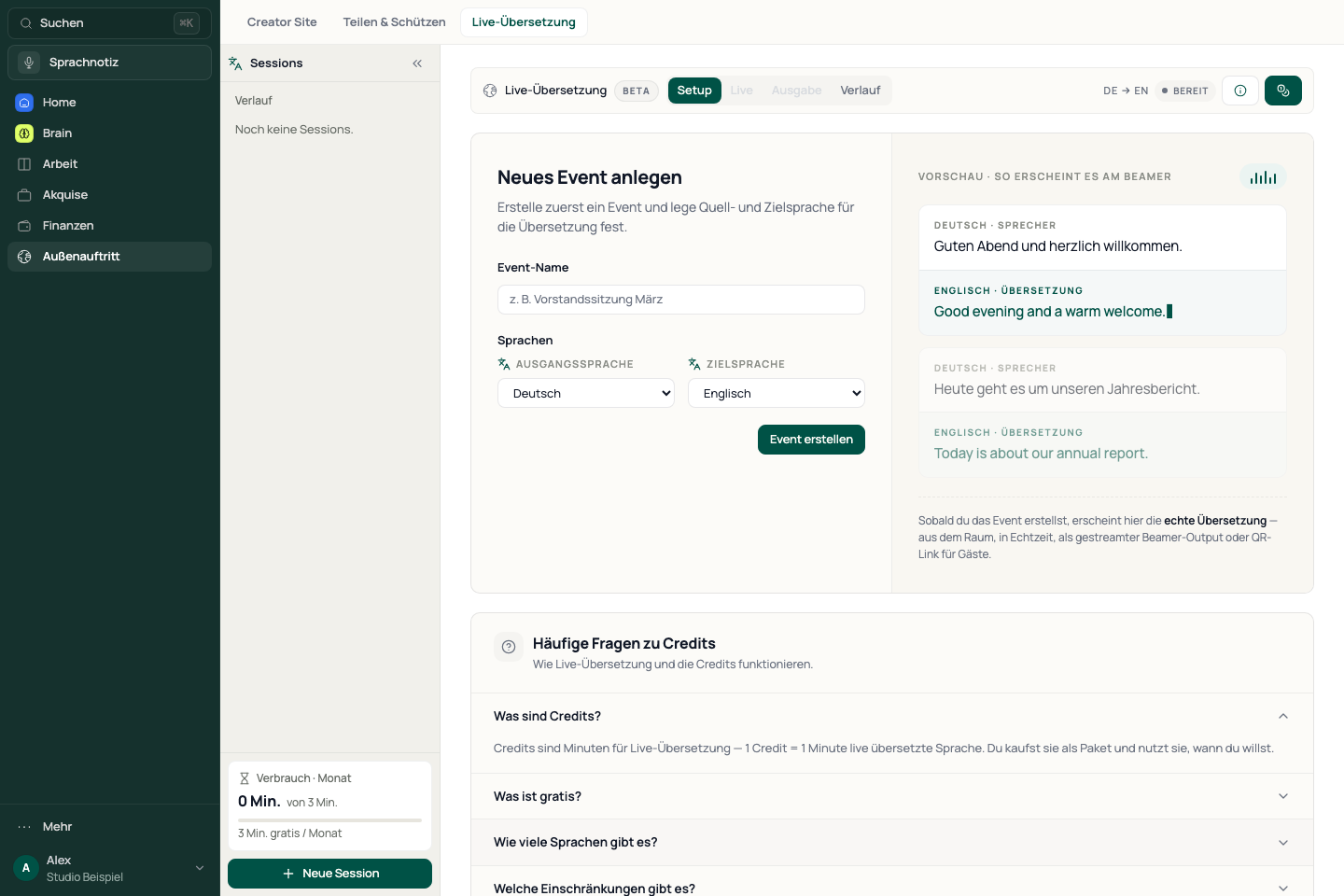
- Open Presence → Live translation.
- In Setup, create an event with a recognisable name.
- Choose different source and target languages and confirm creation.
- Open the event’s live monitor.
See the app view
Start the microphone and check translation
- Review the selected languages and remaining allowance.
- Start the live session and allow microphone access when your device asks.
- Say a short test sentence. Check the original text and translation in the monitor.
- Stop the live session when you no longer need processing.
For delayed segments, wait for their status. A missing translation is not a confirmed result. Check names, numbers and important statements yourself.
Connect the audience and projector
Share only the designated public links. The session control interface remains your work area.
- Open Distribution for the prepared event.
- Copy the viewer link or display its QR code.
- Open the view on a second device and check that it shows the right event.
- Use the beamer link for room projection and check its appearance.
Watch usage and credits
The session displays remaining usage and warnings. Reaching a limit can prevent a start or stop ongoing usage. Check your allowance before a longer event.
Additional credits are a separate purchase. Availability and price are shown with the offered pack. A disabled pack cannot be purchased. Check the selected pack and total price before buying.
If there is no audio or text
If original text appears but translation is missing, inspect the segment status. Restarting does not replace reviewing previous results. For support, provide the error and steps without sharing confidential conversation content.
- Check microphone permission in your browser or operating system and the selected input device.
- Close other applications if they are blocking the microphone.
- Check the connection, different languages and the session status message.
- Stop a failed attempt and restart once the interface indicates it is ready.
Reviewed: