Topics
Record and settle a business trip
Record a trip, its route and expenses. Review the statement before finalising and exporting it.
On this page
- You are signed in and have the trip details and receipts ready.
- Check which information and rules apply to your expense statement.
Open in Klausi (sign-in required)
Create a trip
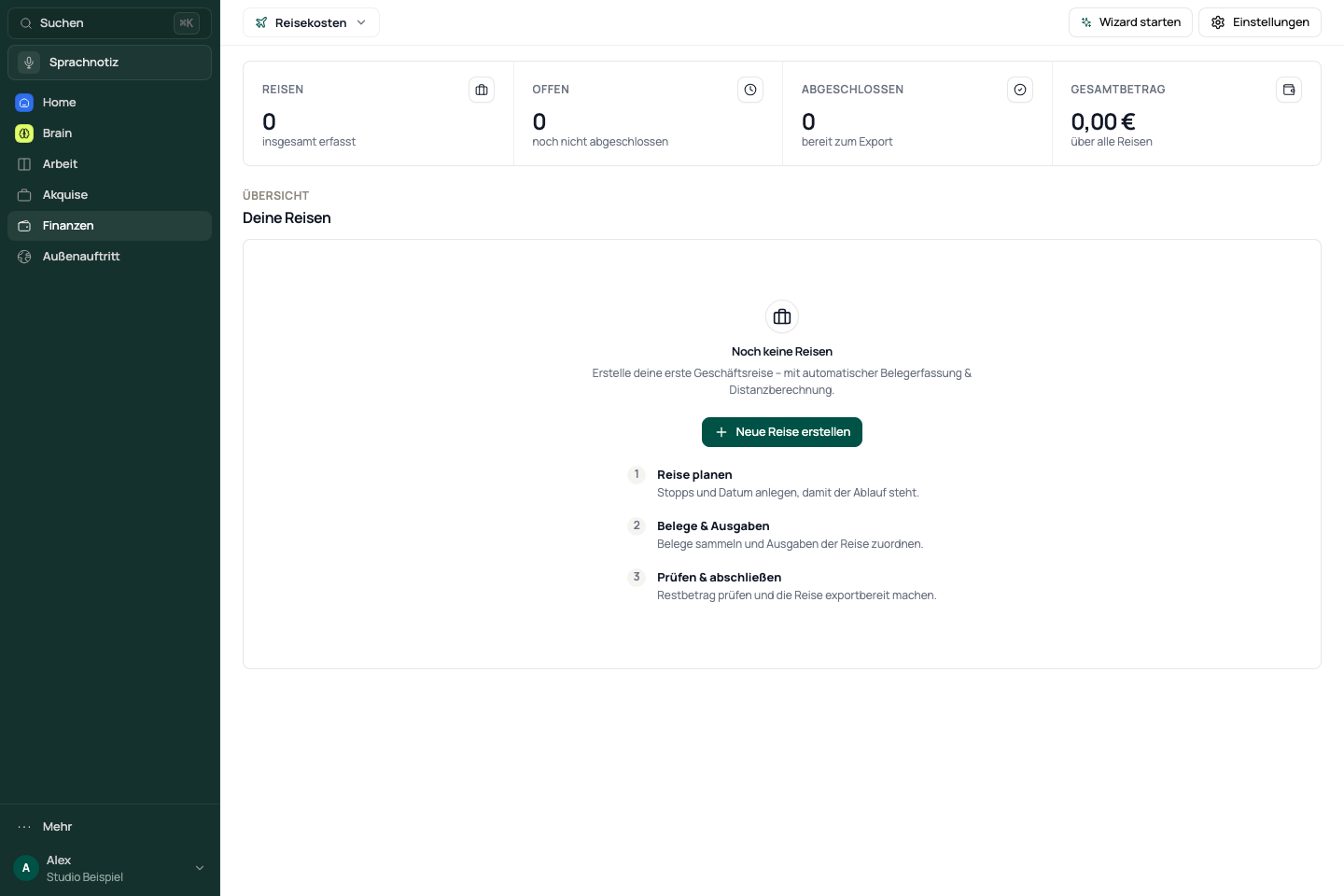
The trip brings its route, receipts and expenses together. The overview shows which core steps remain incomplete.
- Open Finance → Travel expenses and choose New trip.
- Add the trip title, purpose and dates.
- Save the trip and open its detail view.
See the app view
Add the route and legs
- Open Overview & route.
- Enter the start, stops and return journey with their locations and times.
- Check the transport mode and calculated distance for every leg.
Review calculated distances and times. They do not confirm eligibility for reimbursement in your situation.
Record receipts, expenses and advances
Trip expenses and general finance receipts have different contexts. Assign the expense to the appropriate trip.
- Add evidence under Receipts and review the recognised details.
- Add the trip amounts and categories under Expenses.
- Check any advances and amounts already reimbursed.
- Ensure that a receipt and its expense have not accidentally been counted twice.
Review, finalise and export
- Check the dates, route, receipts, expenses and outstanding amounts.
- Choose Finalize and read the confirmation. Distances are recalculated and the trip is locked.
- Then use PDF export. The export actions also offer CSV.
- Open the exported file and check its completeness and assignments before sharing it.
PDF export requires a finalised trip. To change details, you can return the trip to draft and review it again afterwards.
If finalising or exporting fails
Read the notice shown. Check missing locations, times, legs and the trip status. For a PDF problem, first confirm that the trip is finalised. Calculations and allowances require review for your situation; the application does not provide tax approval.
Reviewed: