Topics
Review finances and receipts
Find the overview, month and year views. Review receipts before assigning and booking them.
On this page
- You are signed in to the right work area.
- Your account must have access to the full finance interface.
Open in Klausi (sign-in required)
Find your way around Finance
The overview and year view are separate pages. The switcher also contains areas such as accounts and recurring costs.
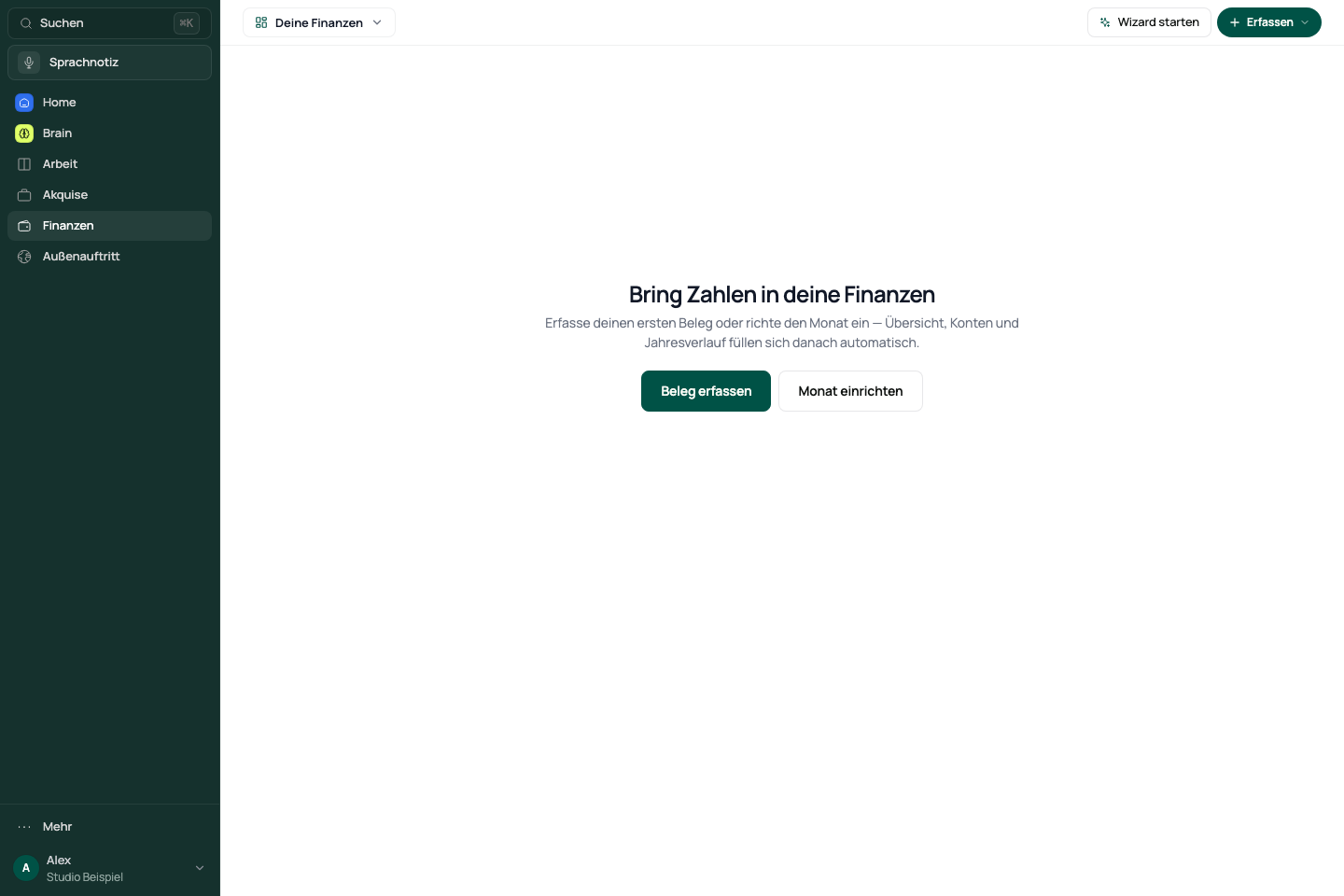
- Open Finance. The entry page shows Your finances.
- Use the area switcher to open Month, Year, Receipts or Invoices.
- If setup is incomplete, supply the requested information before relying on the reports.
See the app view
Distinguish access from editing
On Free, the finance area shows a plan notice instead of the full finance interface. Travel expenses has its own entry and access check.
For a locked action, read the account or status notice shown. Saving a receipt does not book it automatically, and an invoice is not automatically paid.
Read the right period
Amounts depend on the entries, assignments and payment states available. An empty view does not mean that other months contain no data.
- Open Month for an individual month or Year for the annual view.
- Check the selected period before comparing amounts.
- Open the underlying entries when an amount needs explanation.
Review and book a receipt
- Open Receipts and select Upload receipt.
- Under Review & assignment, compare the date, amount, category and other recognised details with the original file.
- Check the destination month and payment status. Save any corrections.
- Booking creates the entry in the selected month or marks an existing entry accordingly. Check the receipt status afterwards.
Automatically recognised data is a suggestion. Review it before booking. Project receipts may have their own project context.
If amounts or receipts are missing
Check the work area, period, search and receipt status. Inspect the inbox and existing entries before uploading the same receipt again. Create invoices under Invoices; Documents holds your files.
Reviewed: