Topics
Share documents and manage shares
Share documents with a protected link, find every link under All shares and end shares you no longer need.
On this page
- You are signed in to the right work area and may share the content.
- Review the content, recipients and intended access conditions before sharing.
Open in Klausi (sign-in required)
Distinguish the share from its source
Open Presence → All shares. Every link has its own row there: documents, Notion pages, notes, time reports and your Creator Site. You share documents in Share documents and Notion pages under Presence → Notion Control. Notes, project time and Creator Site are created in their own areas.
- Find the link or select its type.
- Select the row and check status, password protection and expiry under “Manage link”.
- Go to the source to edit the content itself.
Changing a link does not edit its content. Always check what the recipient can actually see after a change.
See the app view
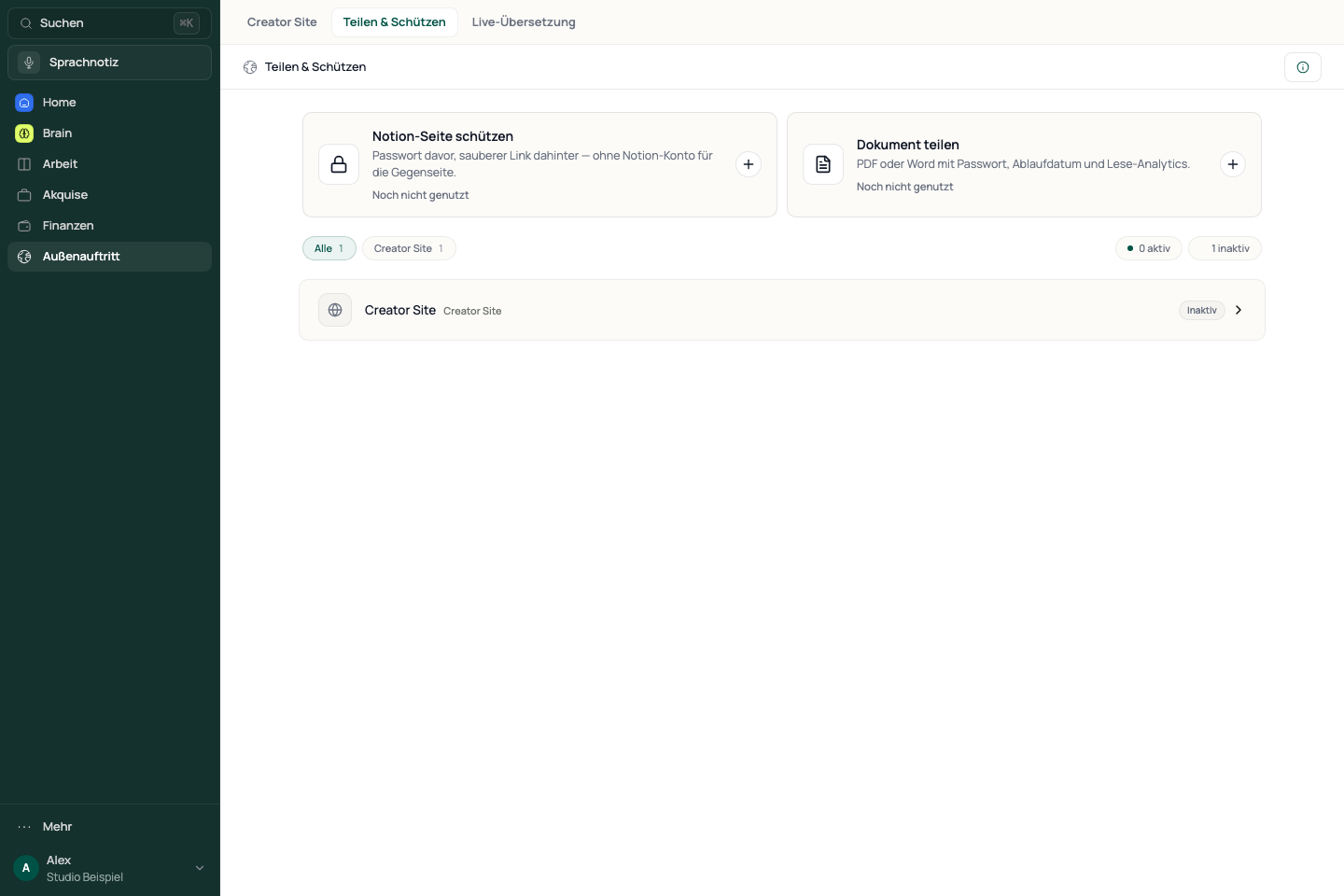
Check access before sharing the link
Document links can use a password, an email request and an expiry date. Choose conditions that suit the content. An email request alone does not verify a visitor’s identity. Without the download button, a document cannot be saved with one click; full copy protection is not possible in a browser. Owners and admins choose whether German share pages address recipients with du or Sie under More → Settings → Branding, in “Form of address on share pages”. This applies on every plan to documents, notes, Notion pages and time reports; English share pages are not affected.
- Open the public link while signed out.
- Check that the intended access conditions are requested.
- Confirm that the correct file or page appears before distributing the link.
End links you no longer need
- Under All shares, select the link and choose “Deactivate link”, or “Revoke link” for notes.
- Check its status after confirmation.
- Test the previous link again while signed out.
Deactivated document and Notion links can be activated again. Note links are revoked and cannot be reactivated. Share the note again at its source if needed. Creator Site is not part of bulk selection. If your workspace has more documents than Free allows after switching to Free, existing links stay active. Activating and extending links only works again below the limit or with Pro.
If a link does not work
Check status, expiry, any required password and the original source. Activating an expired link does not make it valid again. For multiple links to one document, check which link you actually distributed. Do not delete the document if you only want to end public access.
Reviewed: