Topics
Find and change settings
Manage your profile, language, company details and AI consent in their respective settings sections.
On this page
Before you start
- You are signed in to Klausi.
- Available actions also depend on your role and workspace.
Open in Klausi (sign-in required)
Open the relevant section
- Open “More” in the main navigation, then “Settings”. On a phone, open the main navigation first.
- Choose “Account & Profile” for personal details and language. Company details, Work areas and Branding have separate sections.
- Use “Integrations” for available connections and “Import / Export Data” for file imports and data exports.
Change visible menu items under More → Customize menu. Manage public shares under Presence → All shares.
See the app view
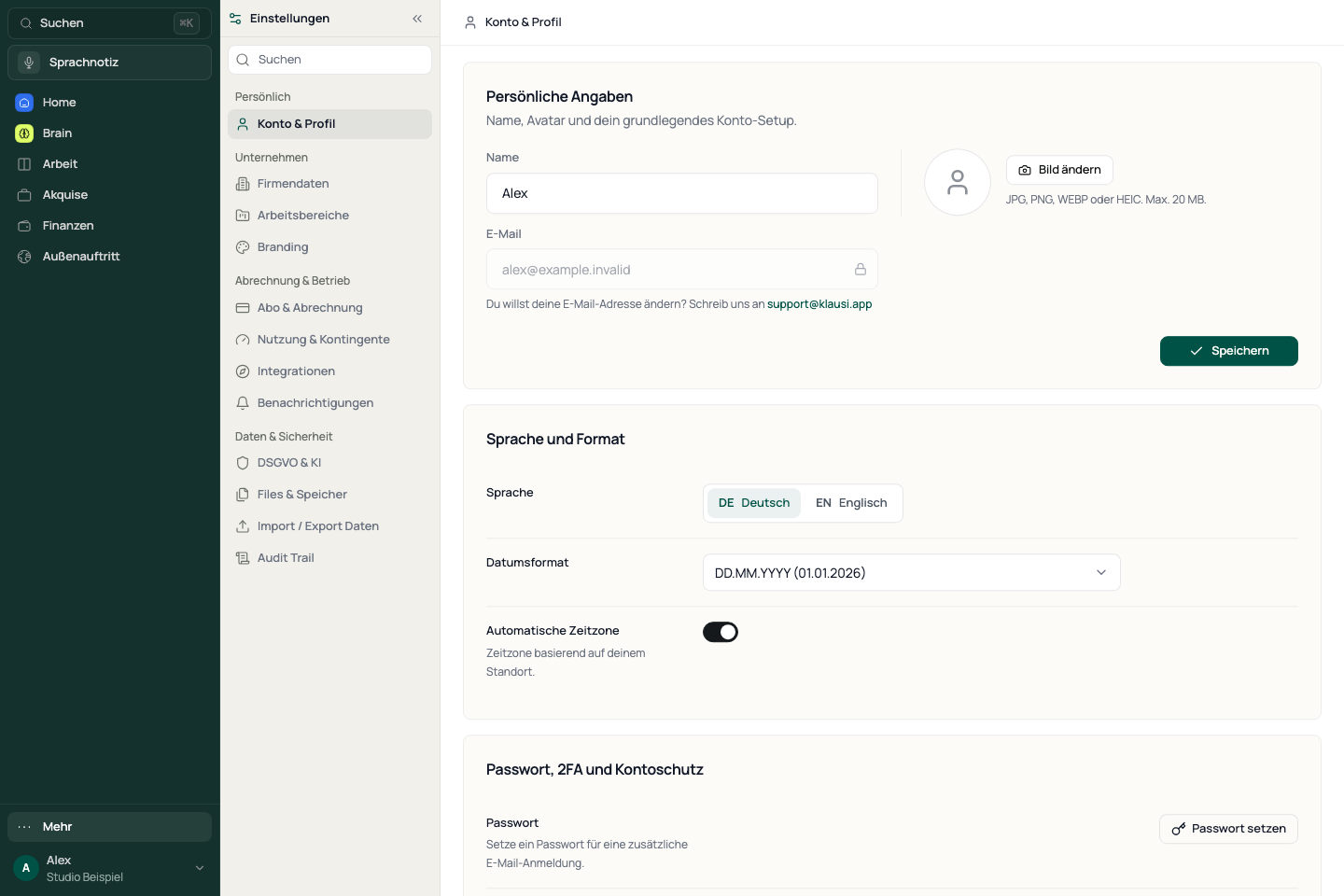
Update your profile and language
The profile form and language selector are separate actions. Check the relevant section after a change rather than assuming one Save button applies to every setting.
- Open “Account & Profile” and edit your profile details.
- Confirm the profile change with “Save” and check the response.
- Under “Language”, choose DE or EN. The language change takes effect immediately.
Review AI consent
- Open “Privacy & AI” and read the displayed status and information about AI use.
- Change the switch only if you want to grant or withdraw the corresponding consent.
- Turning it off opens a confirmation. Read the notice and confirm withdrawal if you want to proceed.
- Wait for the response and check the updated status.
Consent affects AI features. Changing it does not automatically delete your account or saved content.
Manage company details and billing separately
- “Firmendaten” is the current company-details label, including in the English interface. Open it to review and edit company information.
- Work areas: open your existing workspaces and the available management actions.
- Branding: configure a name, logo and colour for supported public pages.
- Subscription & Billing: review the plan and billing options shown for your account.
Change company or billing settings only for the intended workspace. The available actions and terms displayed in your account apply.
If a setting is missing or a change fails
- If a menu item is missing, first check More → Customize menu. This is separate from the settings sections.
- If a management action is missing, check your account, workspace and permissions. A hidden item and a locked feature have different causes.
- If an error appears, keep a private copy of any unsaved text, check your connection and retry the individual change.
Reviewed: