Topics
Find connections in Brain
Explore clients and projects in the atlas, then open the work area linked to a node.
Before you start
- Brain is enabled for your account.
- The current workspace contains clients and linked content.
Open in Klausi (sign-in required)
Open a client’s atlas
- Open Brain in the navigation.
- Open “Alle Kunden” (all clients) at the top and select a client, or select its node in the atlas.
- Explore the client’s connected projects and content.
- Use “Zur Atlas-Übersicht” (back to atlas overview) to clear the client selection.
The atlas toolbar currently uses German labels, including in the English interface. The client selector is in the top toolbar.
See the app view
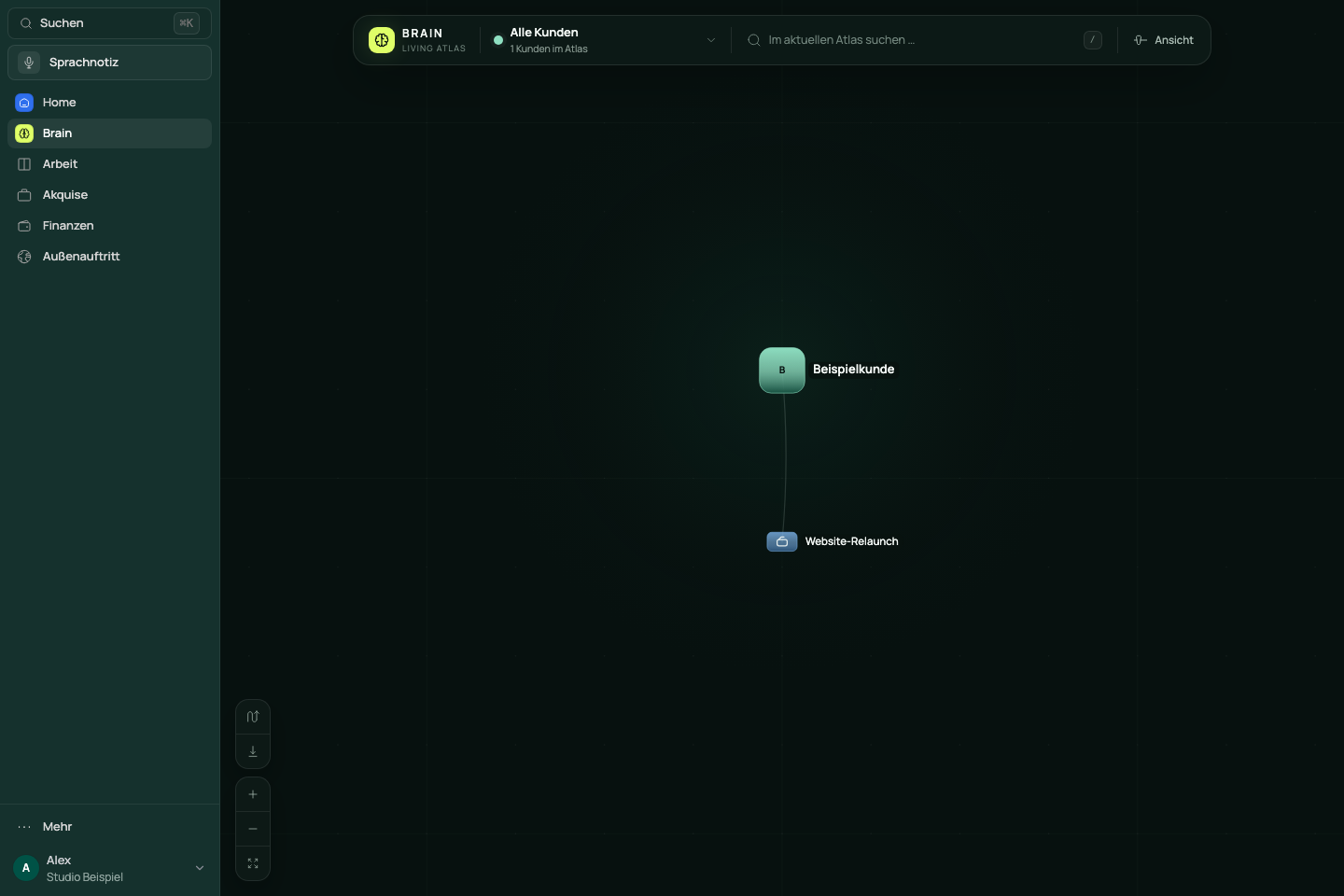
Find and open an item
- Select a client first if you want to search its content.
- Enter at least two characters in “Im aktuellen Atlas suchen …” (search the current atlas). On small screens, open search using the magnifying glass.
- Select a result. Enter selects the first result.
- Review the details and “Verbindungen” (connections). Choose “Öffnen” (open) to go to the linked client, project or content area.
Search applies to the current atlas. It does not automatically search all text and files in your workspace.
Adjust the atlas view
- Open “Ansicht” (view) in the toolbar.
- Under “Sichtbare Ebenen” (visible layers), choose which types to highlight or dim.
- Adjust spacing, node size and project names if needed.
- Use “Reset” to reset the view settings.
These controls change the display. They do not delete tasks, notes or projects.
If a node is missing
- Clear the search text and check the selected client.
- Check whether the item’s type is dimmed under “Ansicht”.
- Open the item in its work area and check its project or client assignment.
- If an upgrade notice appears instead, check your current plan. An empty client atlas can also mean that no linked content exists yet.
Reviewed: