Topics
Find files and their source
Search uploaded workspace files, check their details and open the linked entry.
On this page
Before you start
- You are signed in to the intended workspace.
Open in Klausi (sign-in required)
Find the right file
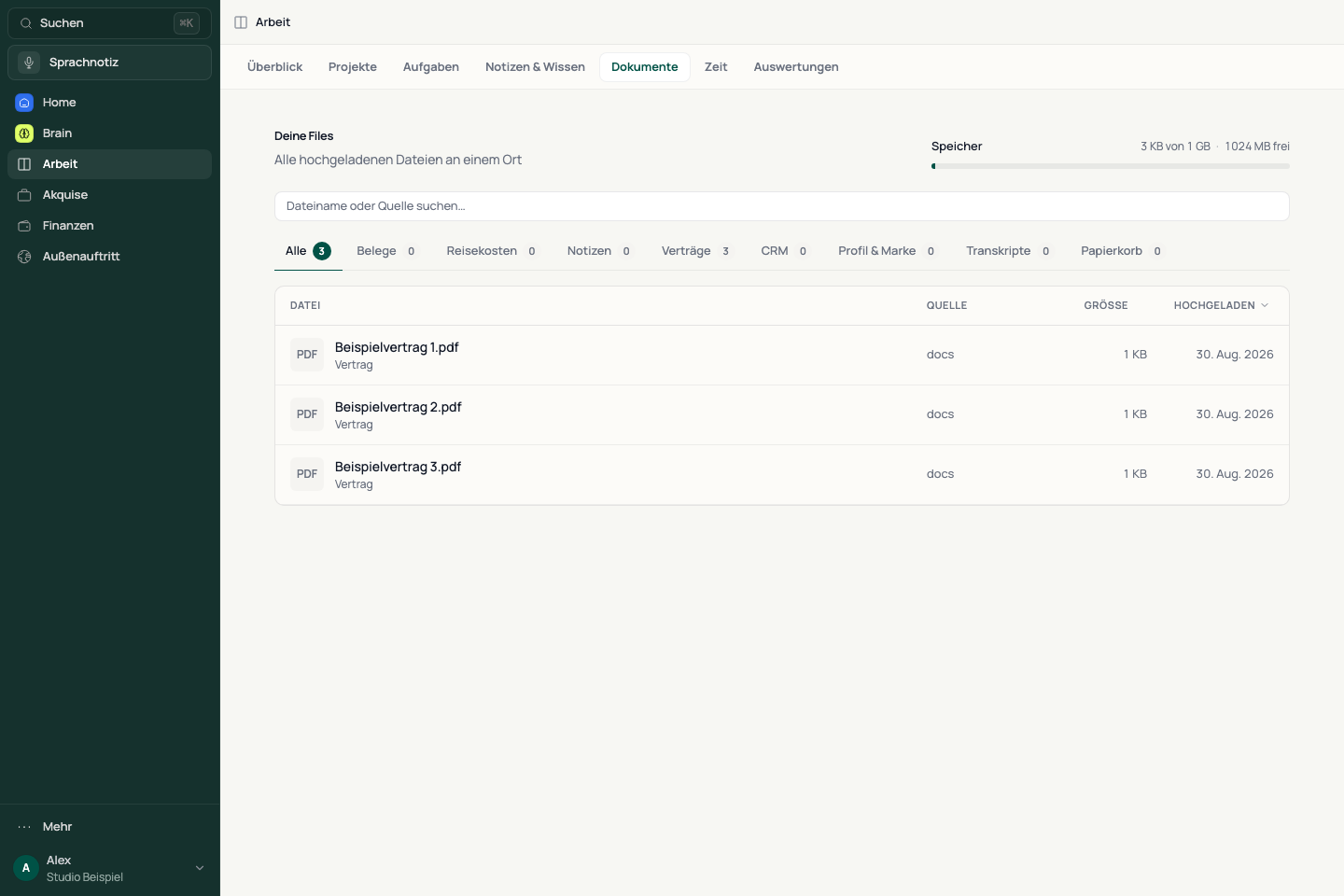
- Open Work → Documents. The overview is titled “File organizer”.
- Search documents or files.
- Choose a category such as Receipts, Invoices, Notes, Shared or CRM if needed.
- Sort by Size or Uploaded, then open the matching file row.
Choose “Upload”, select a file, then choose its destination. Continue to create invoices and quotes under Finances → Invoices.
See the app view
Open the original note or receipt
- Check the filename, size, type and upload date in the details.
- Choose “Open source” if the file is linked to an entry.
- Edit the content or use the download and sharing actions available there.
- If there is no source action, find the original entry in its work area. Not every file has a linked source.
For a shared document, “Open source” leads to its reading behaviour in Share documents. You also manage its links there.
Check storage and remove files
- Check the storage usage shown at the top.
- Sort by Size to find large files.
- Open an unwanted file and check its source before choosing “Delete”.
- Read the confirmation. Only choose “Delete permanently” if you no longer need the file.
This action removes the file from storage and cannot be undone. The Trash view does not guarantee that a permanently deleted file can be restored.
If an upload is missing
- Switch to All and clear the search text.
- Check the workspace, category and Trash if relevant.
- Check the original upload and notices such as “Verifying…” or “Verification failed.”
- If storage is full, check the storage indicator. Do not upload the same file repeatedly before checking the first attempt.
Reviewed: