Topics
Write, organise and restore notes
Capture knowledge in a note, link it to a project and review earlier versions in History.
On this page
Before you start
- You are signed in to the right workspace.
- Dictation needs microphone access and consent to AI features.
Open in Klausi (sign-in required)
Write a note
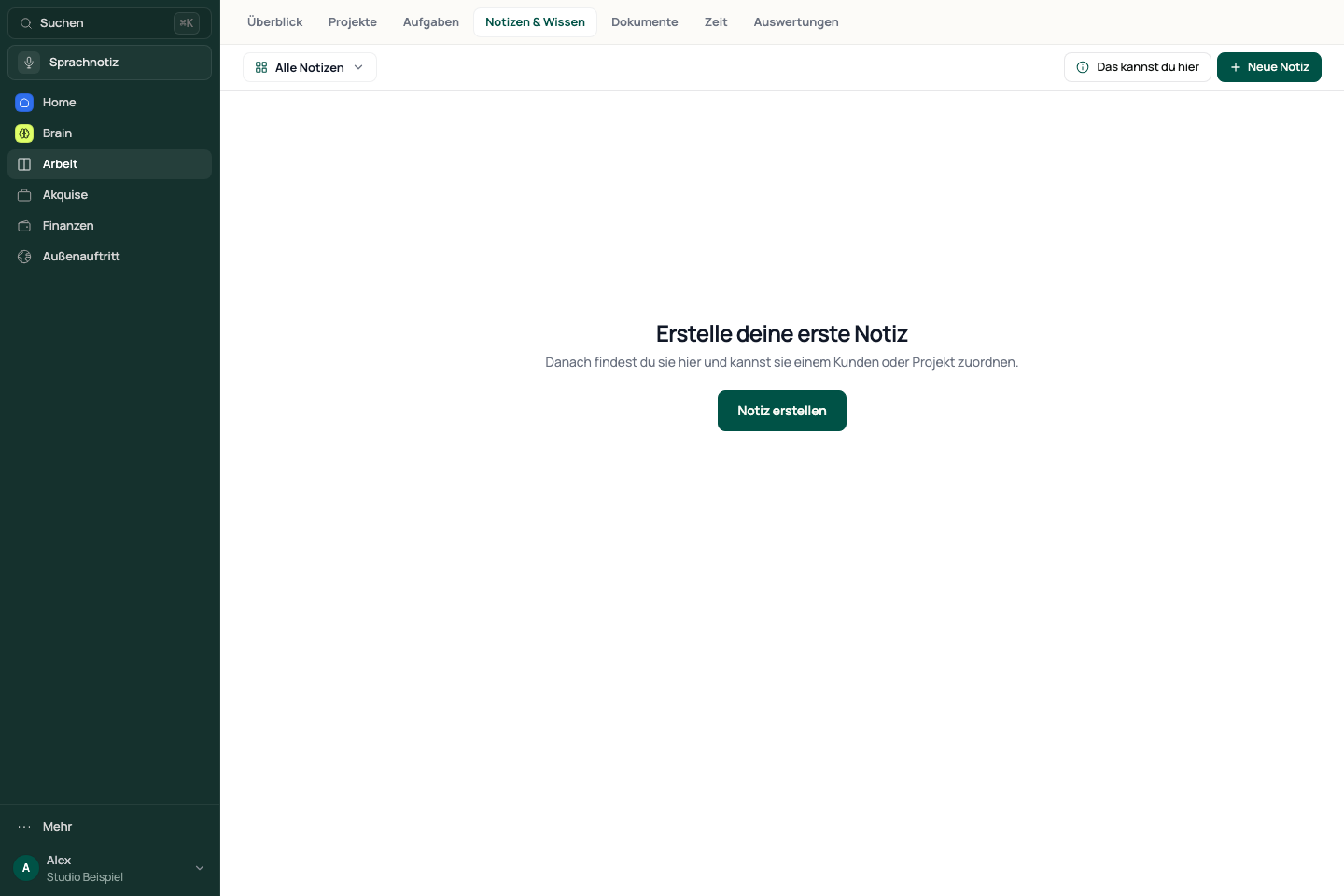
- Open Work → Notes & knowledge to reach the starting view.
- Choose “New note” and add a title and content in the editor.
- Use the dictation bar if needed. Check the recognised text before using it.
- Check the save indicator. Titles and content are saved automatically.
Use the menu in the header to choose Home, All notes, a project or a folder. The save indicator still uses German labels: “Gespeichert” means saved and “Fehler” means error.
See the app view
Assign the note to a project
- Open the note and its project assignment above the editor.
- Select the right project. Add a date and tags if needed.
- Use “To project” to check the assignment.
- Find the project’s notes under Knowledge → Notes. Open All notes to search across projects.
A note without a project assignment does not automatically appear in a project. Assignment is separate from whether the note has a share link.
Restore an earlier version
- Open “More options” → “Show history”.
- Select an available version and read its preview.
- Wait until current changes are saved and the version’s content has loaded.
- Choose “Restore this version”, then check the editor’s content.
The current version is saved before restoring. A new or unchanged note may have no history yet. A save error also blocks restoration.
Export or share the note
- Wait until the current note is saved.
- Open More options and choose “Export as Markdown” or “Export as PDF”.
- Check the saved file before passing it on.
- For a share link, use “Share” instead and review the settings offered there.
If a note or its content is missing
- Choose All notes in the header menu and check search, project, folder and active filters.
- Also check Archive in the same menu. Notes moved to trash do not appear in the active list.
- If saving fails, copy the visible text somewhere safe and check your connection before closing the editor.
- For missing older content, open History. Compare the preview before replacing the current note.
Reviewed: