Prepare audio, internet and audience access
You need a Klausi account, a modern browser, a microphone and reliable internet. Add a projector or display for shared viewing. Guests following the link need their own internet-connected device.
Agree the audio feed with the technician and tell speakers about AI processing. Decide which language pair your audience needs and whether professional interpreting or other access support is also required.
Step 1: Create an event and connect a microphone
In Klausi, open Public presence → Live translation. Create an event with a clear name. You can prepare it beforehand; live translation starts separately.
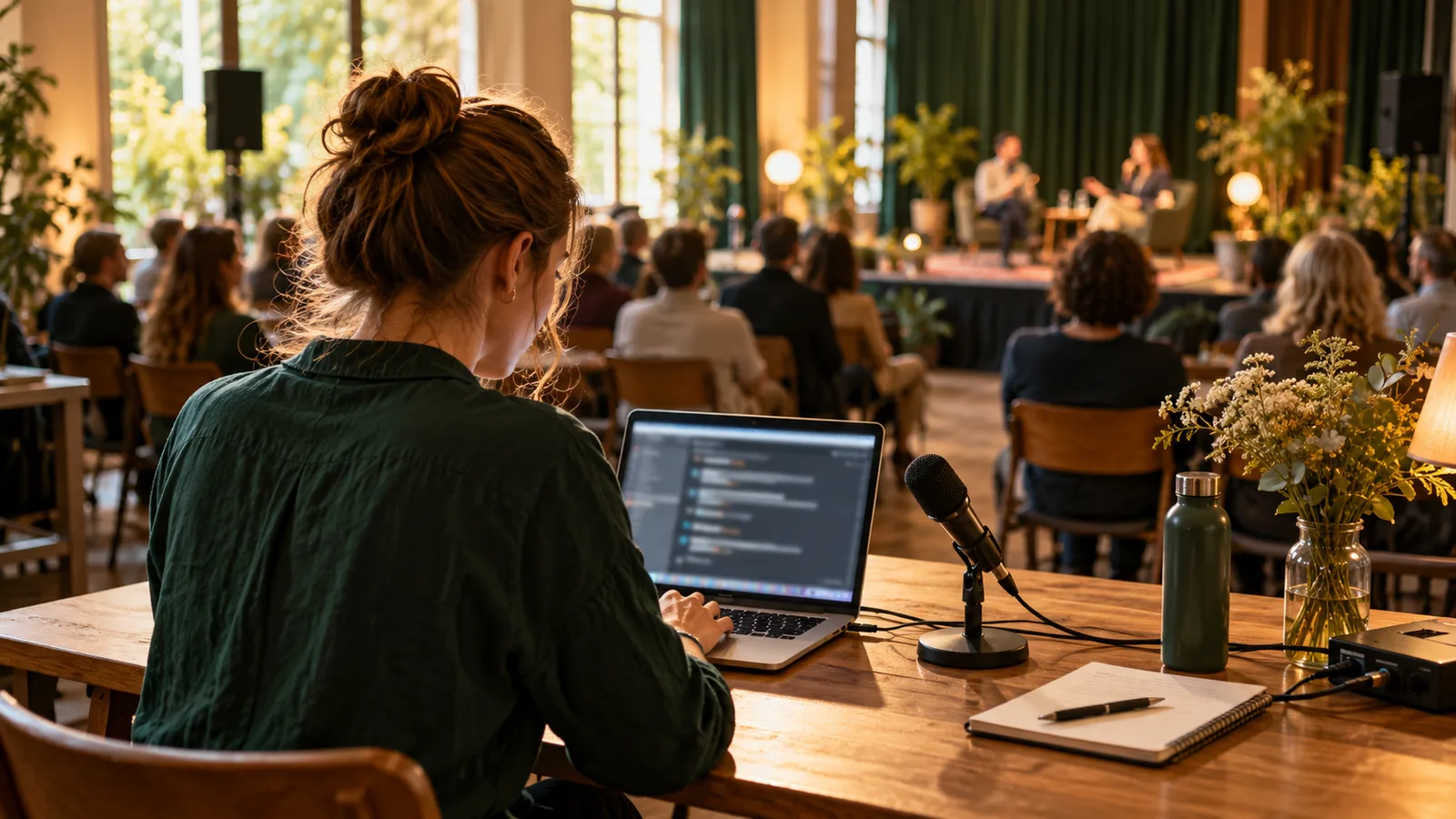
Connect the microphone and select the appropriate input. Allow microphone access in the browser. Check with a speaker that the intended signal is reaching the laptop. A microphone on a desk at the far end of the room will not suit every setup.
Step 2: Choose the language pair
Choose the two languages for the event. Klausi currently supports German, English, Turkish, Italian, Spanish, French, Portuguese, Dutch, Polish, Ukrainian, Romanian, Greek and Arabic.
The current live flow translates in both directions within this pair. When the spoken language changes, output switches to the other language. Rehearse contributions in both. One event does not translate into all 13 languages simultaneously.
Step 3: Start and check live translation
Start the session and speak realistic sample sentences: a welcome, a name, a specialist term and a question. Check original text and translation with someone who understands both languages. Pay particular attention to names, numbers and short negatives.
Output may arrive with a delay. Avoid overlapping speech and plan clear handovers. Watch the balance, connection status and text during the event. Agree beforehand how the moderator should respond to errors or interruptions.
Step 4: Open projector output and share guest access
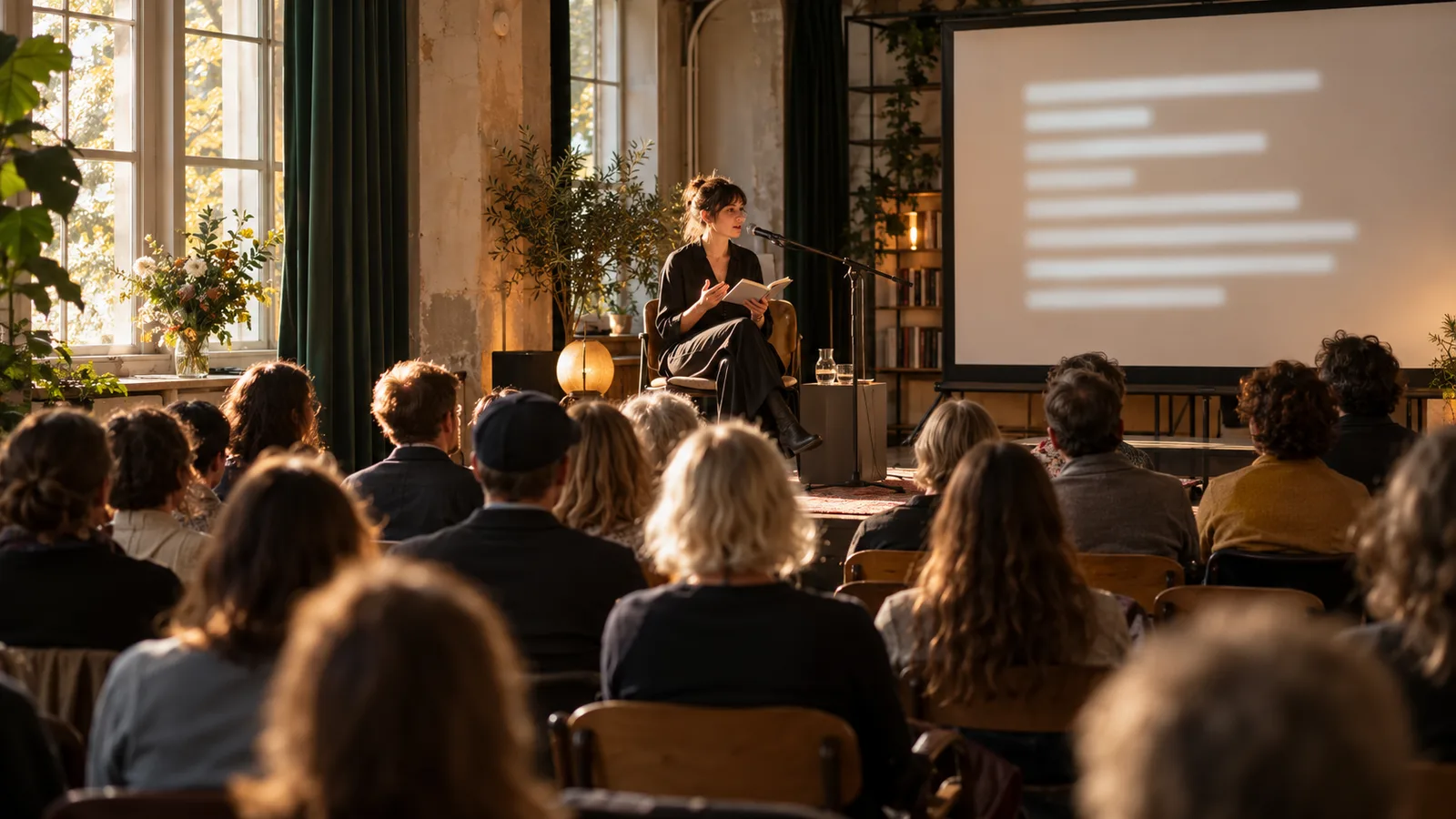
Open the projector output and move its browser window onto the external display. Use an extended desktop if you want the controls to remain on the laptop. Adjust text size and appearance for the room.
Test the guest link or QR code on a second device. Guests can open the live view in a browser without a Klausi account or app installation. The projector guide and QR access guide explain the two outputs.
Choose suitable formats
Structured talks, moderated panels and readings are useful formats to try. Mobile guest access can help on tours. Scripts, wordplay or sensitive conversations require a separate quality decision.
Avoid promising that everyone will automatically understand. Testing with your audience is how you find out whether text pace, visibility and language work. For a broader overview, read the cultural event guide.
Check costs and data handling before starting
You get 3 free minutes per month for testing. Buy one-time minute packs for longer events. Usage is metered in minutes, and purchased minutes do not expire. Check current terms on the pricing page and the balance in the app before the event.
Audio is sent to the service provider used for recognition and translation. Clarify how participants are informed, which content is appropriate and how text history will be handled. The privacy policy and voice processing information explain the framework in German.
Record three requirements before starting
Write down the event format, required language pair and output. The list of 13 languages supports selection. Projected text for a talk needs a different rehearsal from a smartphone viewer during a tour.
Use the route checks for a travel group and the needs and support checklist for an exchange programme. The technical setup remains the starting point. The Klausi live translation help adds operating guidance.