When smartphone access helps
On gallery tours, guests move between rooms. At larger events, some seats are too far from the screen. A personal display can help in either case. Check internet coverage everywhere you intend to use it.
The link can also complement shared projector output. It does not replace a display for guests without devices or mobile data. Clear entrance instructions and personal support make joining easier.
Step 1: Prepare the event and language pair
Create a Klausi event with a name and language pair. Choose the microphone and test both languages. Translation works in both directions within the pair. Guest access belongs to that specific event.
You can prepare distribution beforehand. Before printing, confirm that the link belongs to the correct event. Testing the public guest view prevents you from accidentally distributing an internal management link.
Step 2: Use the link or QR code from the output view
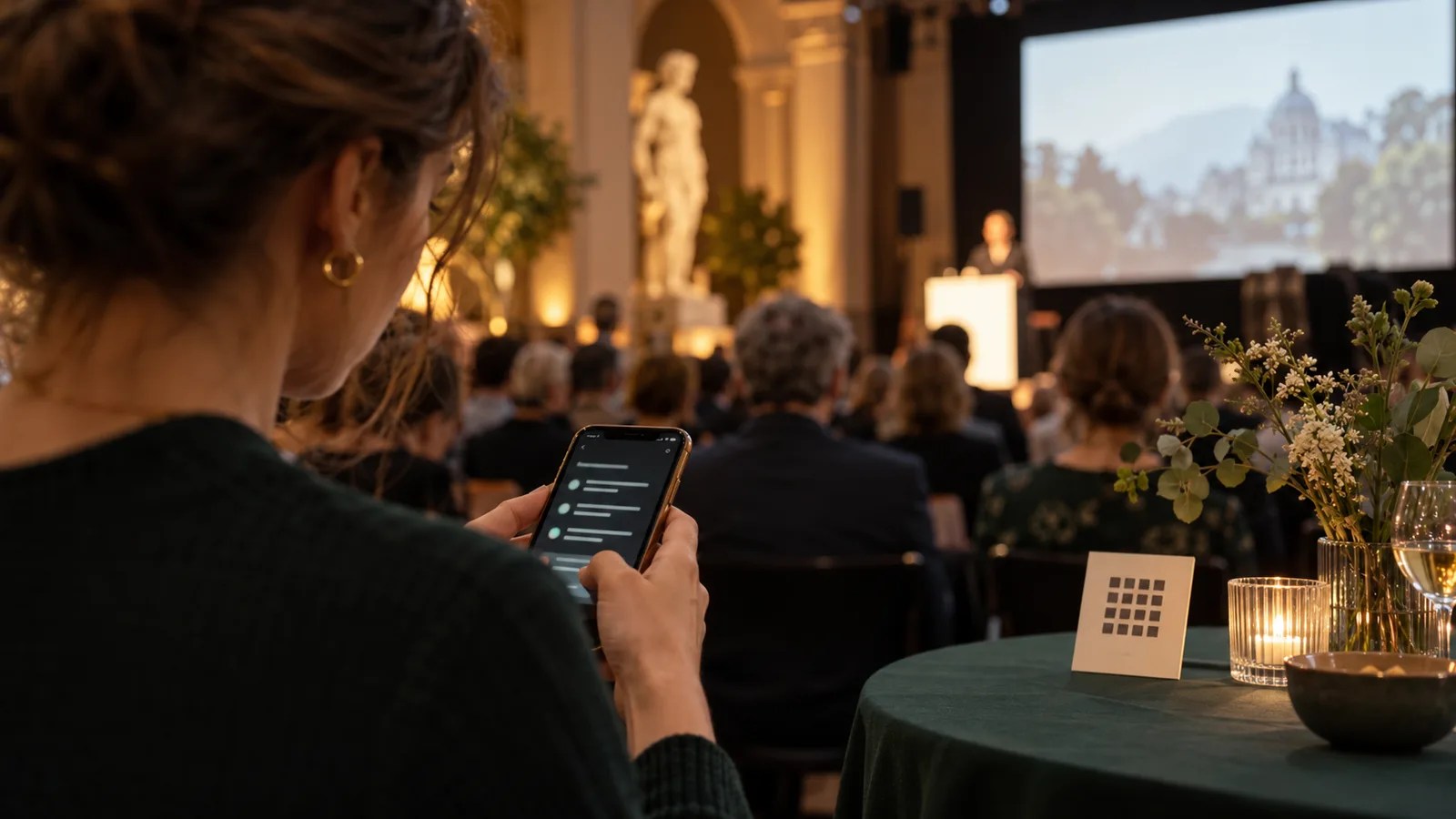
Open guest access in the output area. Copy the event link or use the QR code provided. Smartphones open a web page. Guests do not need an app download or their own Klausi account.
Test the link on a second device that is not signed in to your management account. Test a printed code using an actual camera. Small codes, reflections or excessive distance can make scanning difficult.
Step 3: Make access easy to find
Show the code on the screen before the start, at the entrance or in the programme. Add a short explanation naming the language pair and purpose. A readable link provides another way in.
- Programme: code, clear event name and short explanation.
- Entrance: a sign with good contrast and space to scan.
- Before the start: holding slide with the code and staff help.
- During the event: show access again without unnecessarily obscuring live text.
Use the link at hybrid events
You can include the link in invitations or a livestream chat. Remote guests open the text view alongside the video. Test that experience from a remote device before announcing it.
Video and translation may have different delays. Do not promise automatic synchronization with any arbitrary stream. Explain the purpose of each view.
What guests see
The guest view shows translated event text. Guests can also reveal the recognized original. Test the current output and language selection with your chosen pair so you can explain it accurately.
Check readability and text changes on a smaller smartphone. Audience size and good venue Wi-Fi are separate issues. Check local network capacity with the venue instead of promising unlimited attendance without practical constraints.
Access, data handling and session end
Anyone with the event link can open the public guest view. It is not a password-protected channel for confidential conversations. Only use content intended for that audience and tell participants about processing.
Guest access is designed for the live event. It is not a public transcript archive after the session ends. A text history saved in your own workspace is separate. Details are in the German voice processing information and privacy policy.
Test QR and projector access together
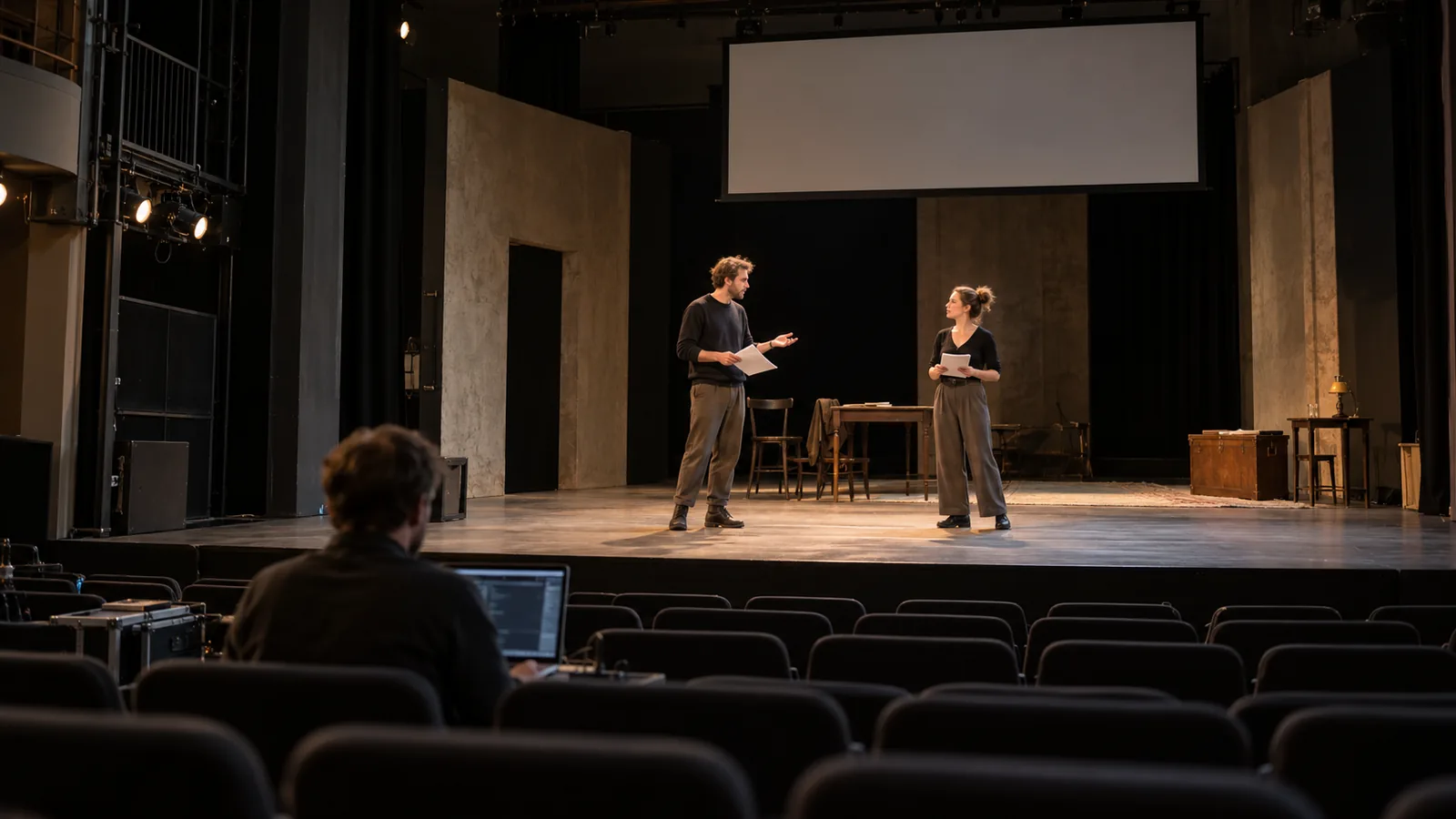
Open both during a rehearsal. Confirm the right event is shown and new sentences arrive. The projector guide complements this process. The product page shows where to start.
Plan access for tours and exchange programmes
For travel groups, send the link ahead and test a first sentence together at the meeting point. Check mobile data along the route. Guests should be standing safely when reading.
For exchange programmes, let one person help with the viewer while the moderator welcomes participants. Explain the selected language pair. Opening a guest link does not allow unrestricted selection of other target languages.