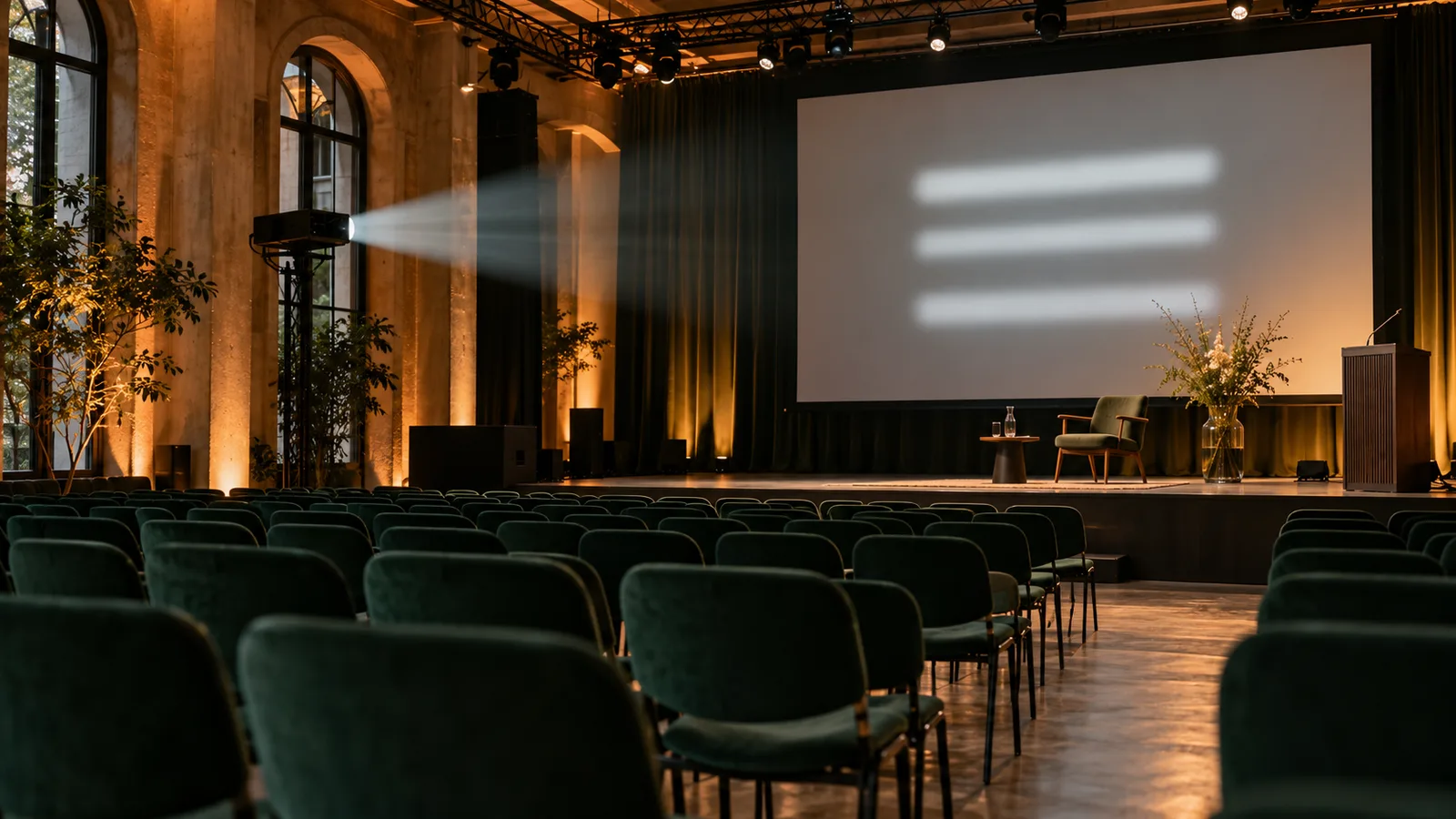
What projector output shows
The output displays current text prominently and can show earlier contributions below. Appearance, text size and history are controlled in the output settings. An older guide describing a fixed two-column layout is not a reliable description of today’s view.
Klausi works with a chosen language pair. The current event flow translates both ways within it. Check which language guests see and how speaker changes appear during rehearsal.
Step 1: Connect the external display
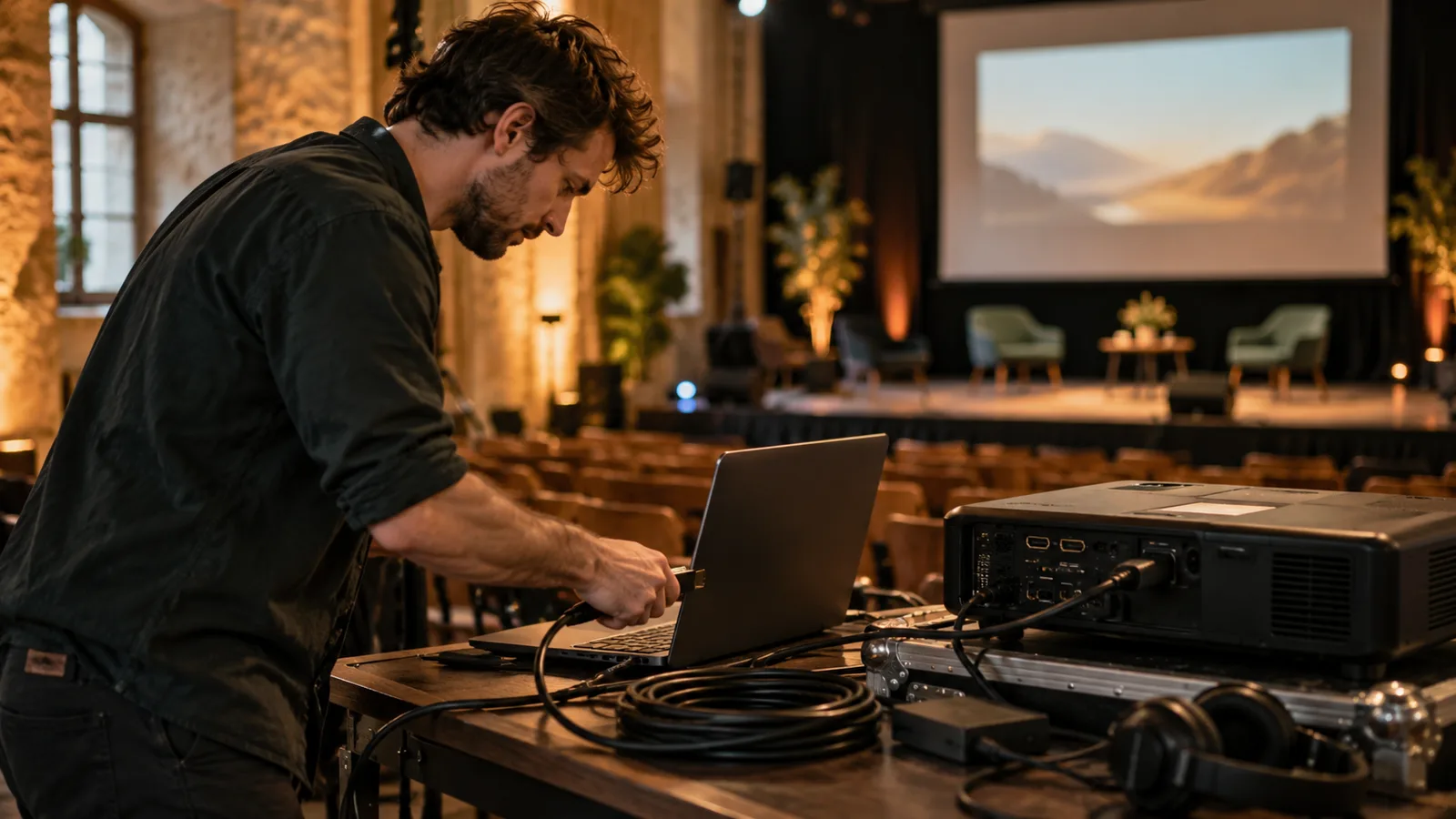
Connect the laptop to the projector or display using a suitable cable and adapter. Select the right input on the display. Test the connection with that exact laptop before the event.
Choose an extended desktop in the operating system if needed. The control view then stays on the laptop and the browser output window sits on the external screen. With a mirrored display, guests see the same screen as you.
Step 2: Prepare the event and microphone
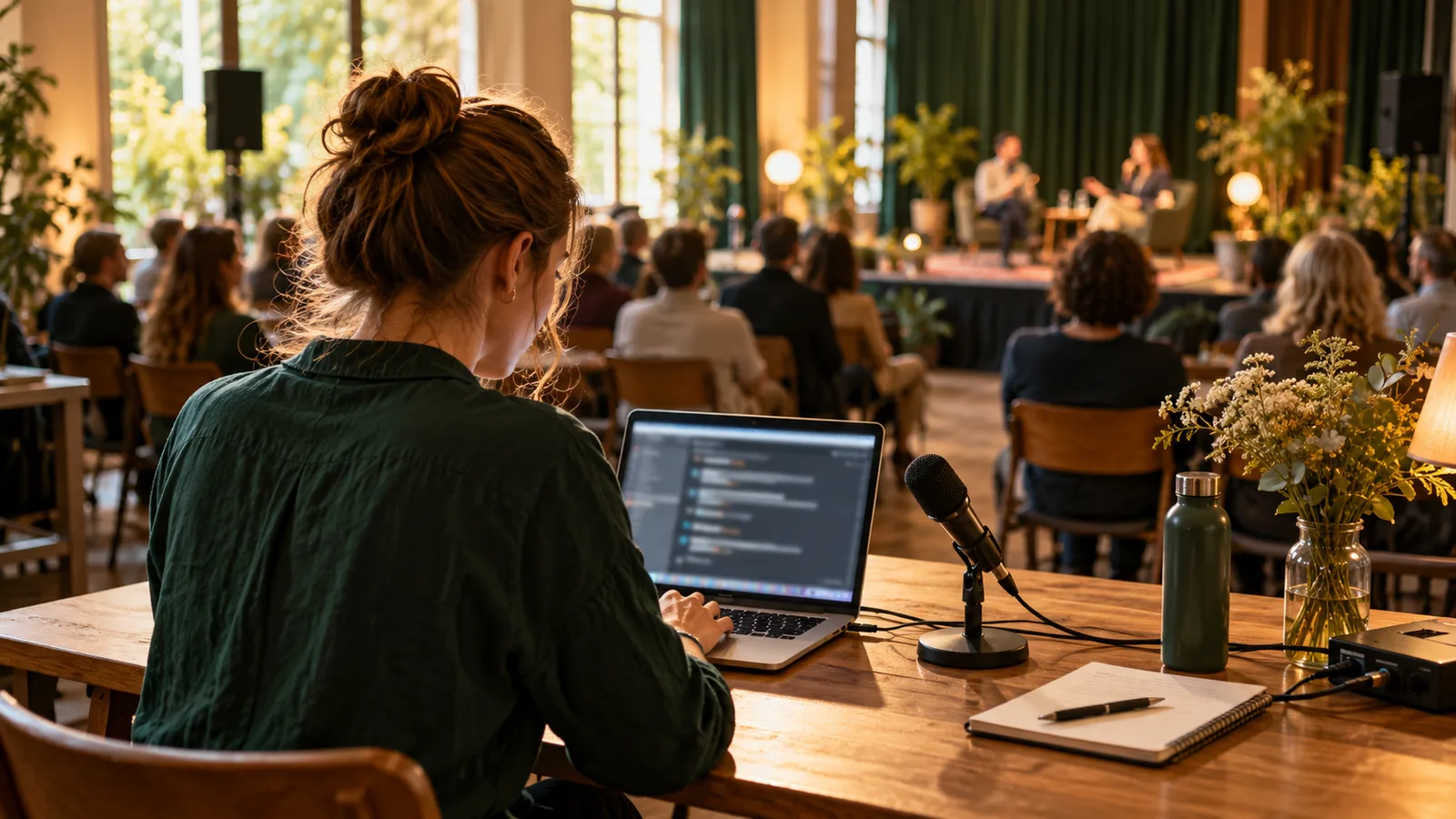
In Klausi, open Public presence → Live translation. Select an event or create one with a name and language pair. Connect the microphone, choose its input and allow browser access.
Speak representative sentences in both languages. Check names, numbers and specialist terms. Creating an event does not start translation. Start the session deliberately for the test and keep track of the minute balance.
Step 3: Open and adjust the projector view
Open projector output from the output settings. Move the browser window to the external screen and use browser full-screen mode if appropriate. Check window borders and the complete projected image.
The current Klausi output provides several text sizes and appearances. Choose a readable combination and adjust visible history. Event name and additional information should not crowd out the translation itself.
Step 4: Check sightlines and placement
Have someone continue speaking while you read from the back row. Check side seats and the view in an occupied room. Place the display near the stage without obscuring faces or slides.
An additional display can help difficult sightlines. For room lighting, resolution and projection surfaces, use the readable projection guide.
Seven practical setup points
The most useful setup is one you have checked fully on site. A short welcome at an empty laptop is not enough. Rehearse audio, both languages, text changes and the actual output together.
- Bring the right cable and a tested spare adapter.
- Keep the laptop and display connected to power.
- Place the microphone near the current speaker.
- Check internet and rehearse with a backup connection.
- Review notifications and automatic screen locking for the presentation.
- Recheck size and appearance after lighting changes.
- Assign someone to status, audience instructions and interruptions.
Add QR access and prepare for interruptions
Show the guest QR code before the start so people can read on their own phones. Test it independently from the projector. The QR guide covers distribution and access.
New translation requires an active internet connection. Expect interruptions if it fails. Restoring a connection does not guarantee that missing speech will be recovered. Test backup internet and agree an announcement with the moderator.
Finish the rehearsal
Recheck balance and session status before doors open. There are 3 free minutes per month for trying the feature; buy additional minutes for longer rehearsals and events. The product page and four-step setup guide complete the process.
Approve the display with the actual language pair
Do not test only your laptop’s default language. Longer translations, Turkish characters, Ukrainian script and Arabic text can require different space and reading checks. Test the chosen pair on the external display and in the guest viewer.
The language list contains all 13 options. Artistically cued theatre surtitles need a separately planned prepared-text solution. Projector mode alone does not cue a play script.